
Automation

Automation you can read

WaBizBox’s automation is a rule-based, step-by-step flow built from WhatsApp’s own interactive messages: buttons, lists, questions and WhatsApp Flows forms. It does exactly what your steps say.
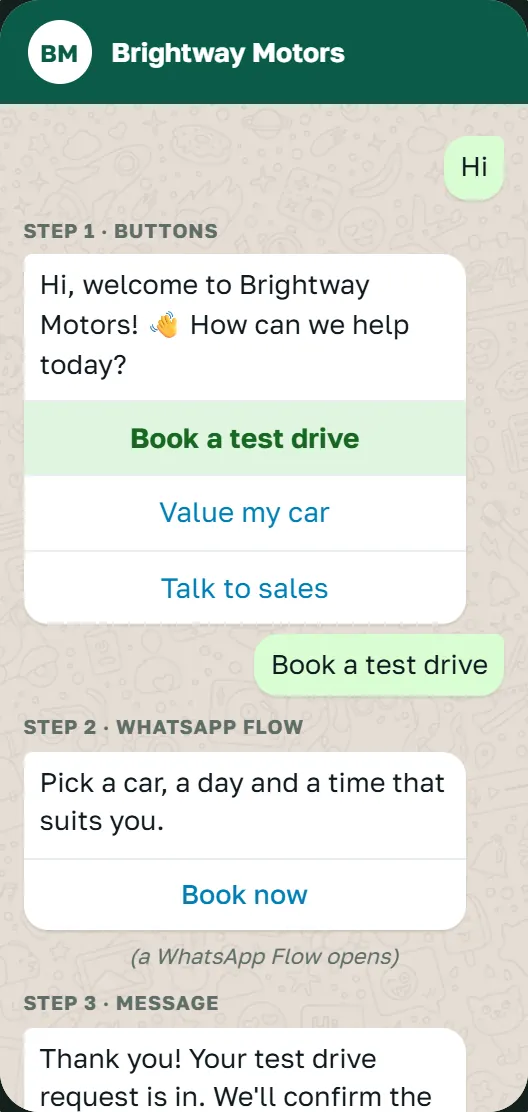
What the customer sees in WhatsApp: a welcome message with three buttons, a WhatsApp Flow form to open, and a reply
What the customer sees in WhatsApp

What it is

It follows your steps. It doesn’t guess.

Customers tap buttons and choices, answer your questions, or type one of your keywords. A message it doesn’t recognise gets the menu again, and after a few in a row, your team takes over.

What it does

  • Greets new customers, in their language
  • Offers a menu of up to three buttons, or a list
  • Asks questions and checks the answers: an email, a phone number, a date
  • Opens a WhatsApp Flow form
  • Jumps to a step when a customer’s whole message is one of your keywords
  • Says when your team is back, outside working hours
  • Transfers the chat to a person when asked, or when it doesn’t recognise a message

What it doesn’t do

  • It doesn’t guess. It isn’t AI, and it never writes its own answers.
  • It doesn’t keep a customer stuck: after a few unrecognised messages in a row, the chat goes to your team.
  • It doesn’t answer while a person has the chat.

Set-up

Two ways to set it up

Customers get one or the other. Custom steps stay a draft, and customers keep getting the simple menu, until you publish them.

Simple menu

  • A greeting, with an optional language question first.
  • A menu of up to three buttons, WhatsApp’s limit, with an optional picture above it.
  • Each button does one thing: opens a form, sends a text, sends a link, or hands over to your team.

Custom steps

  • Seven kinds of step, from a plain message to a WhatsApp Flow.
  • Each step does one thing, then goes to the step you choose.
  • Keywords send a chat straight to a step.
  • Answers are saved on the customer and emailed to your team.

Steps

Seven kinds of step

Each step does one thing, then goes to the step you choose.

  • Send a message

    Sends your text, then moves to the step you choose.

  • Buttons (up to 3)

    Reply buttons under your text. Each tap goes to its own step.

  • List (up to 10)

    Choices behind one button, each leading to its own step.

  • Ask a question

    Checks the answer is text, an email, a number, a phone number or a date.

  • Check working hours

    Goes one way during your working hours, and another outside them.

  • WhatsApp Flow form

    Opens one of your forms inside WhatsApp, and goes on once it’s sent.

  • Transfer to a human agent

    Hands the chat to your team. It moves to Waiting, and they’re told.

When a step ends here, the automation stops, and the customer’s next message starts from the first step. What it collected is saved on the customer and emailed to your team.

Editor

Edit as an outline or on a map

The same steps, two views. The outline shows them in the order a conversation runs. On the map, drag steps, link them, arrange them, and see steps that nothing leads to or that loop.
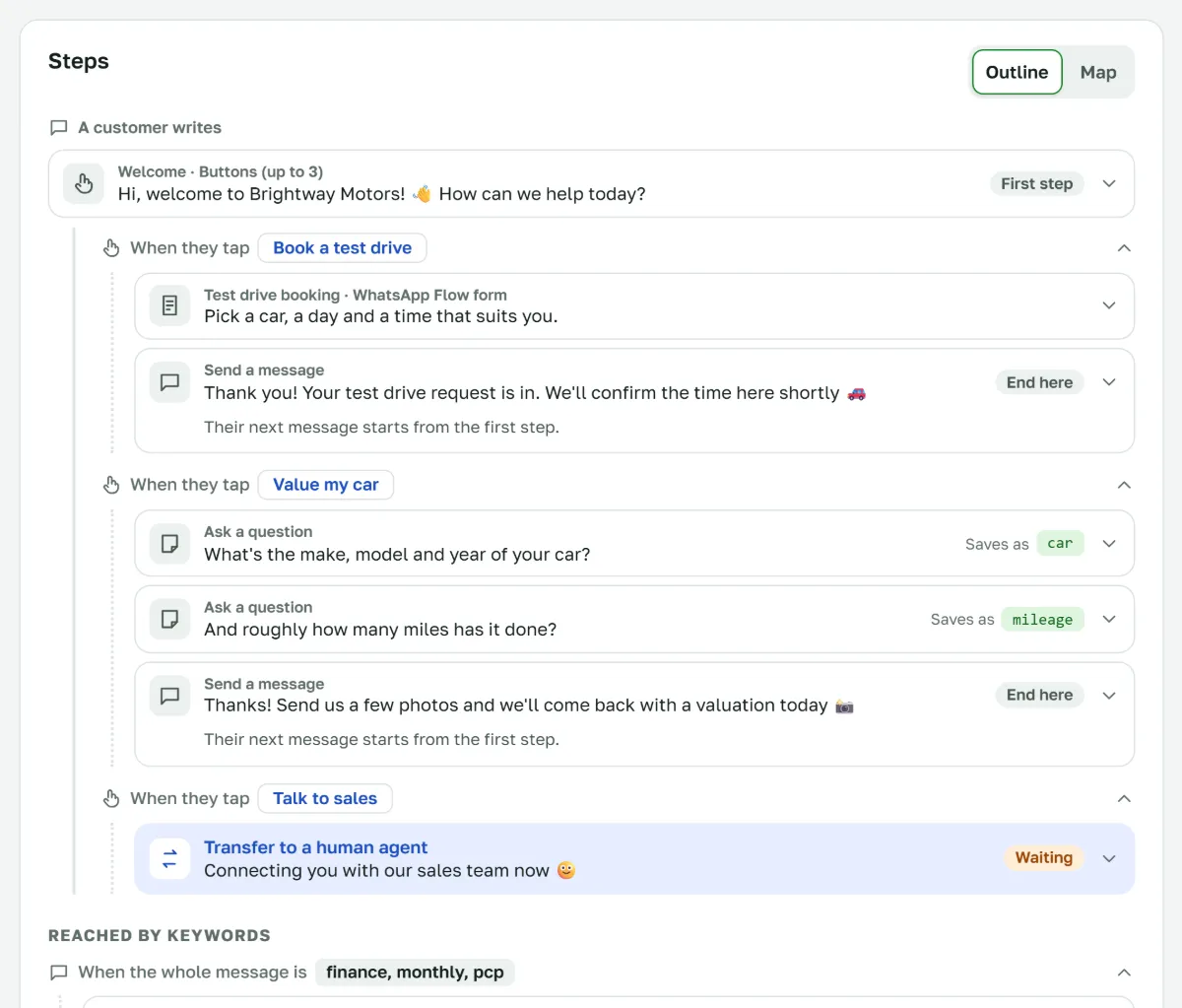
The steps as an outline, in the order a conversation runs: the Welcome step with three buttons, and under each button the steps it leads to, a WhatsApp Flow form, two questions, messages that end there and a transfer to a human agent; an Outline and Map switch above
Outline Each step under the button that leads to it, with its text and where it goes next.
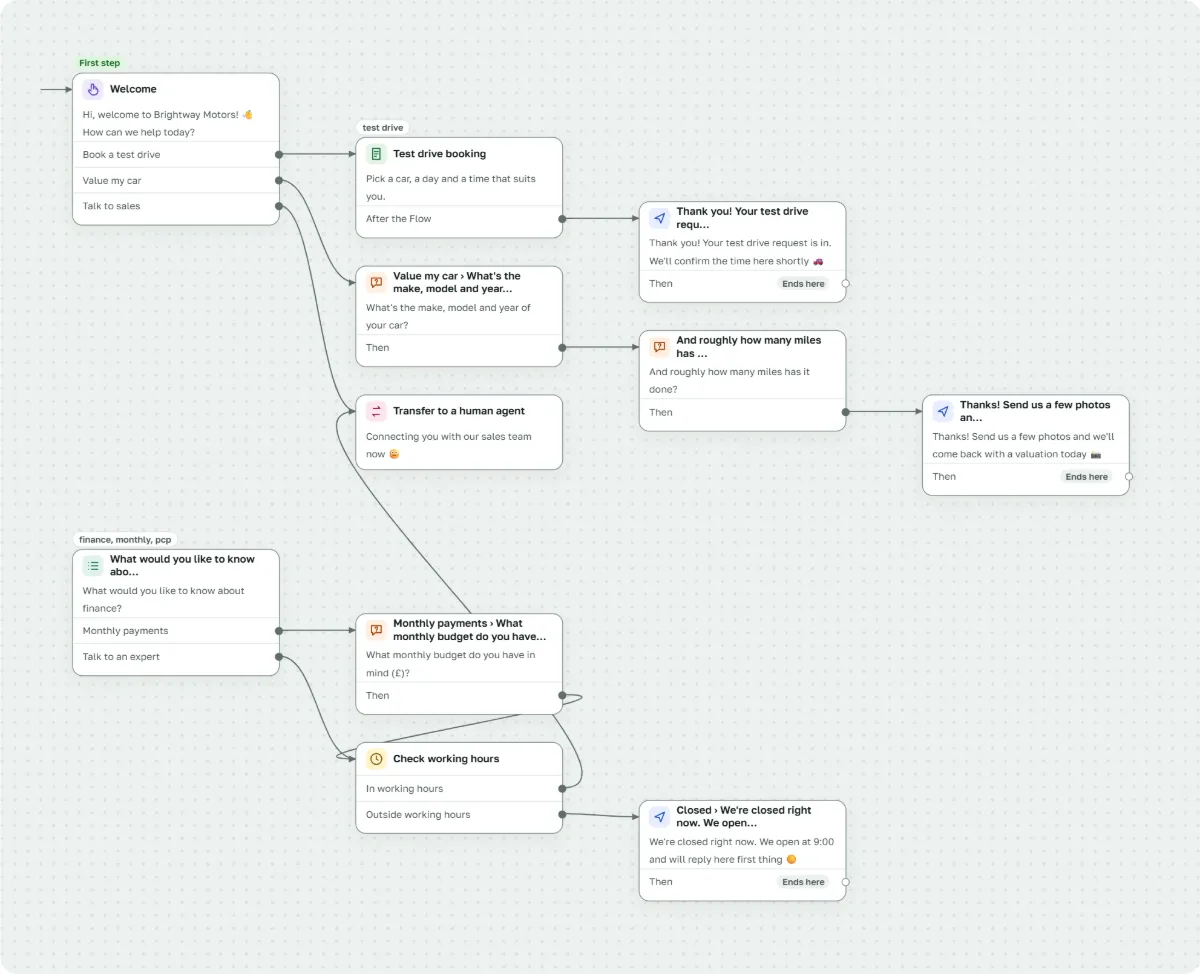
The automation map: eleven steps joined by lines, with buttons, a WhatsApp Flow form, questions, working hours, a transfer to a human agent and a list reached by keywords
Map The whole automation at a glance, joined by lines.

Rules

Keywords, working hours, and when nothing matches

Keywords

When a customer’s whole message is one of your keywords, the chat goes straight to a step. Capitals and punctuation don’t count. Separate the words with commas.

  • “price” goes straight to the step
  • “what’s the price?” doesn’t: the whole message has to match

Working hours and hand-over messages

Set your hours and time zone. When a customer asks for a person outside them, the reply names your hours and time zone, and the chat still waits in the inbox.

  • One hand-over message in working hours, another outside them
  • Each hand-over message can be switched off

When nothing matches

A message that matches nothing gets your fallback message, with the menu again.
  • After the number of unrecognised messages in a row you set, the chat is transferred to a human agent
  • The menu isn’t repeated within the seconds you set, so “hi hi hi” gets one menu
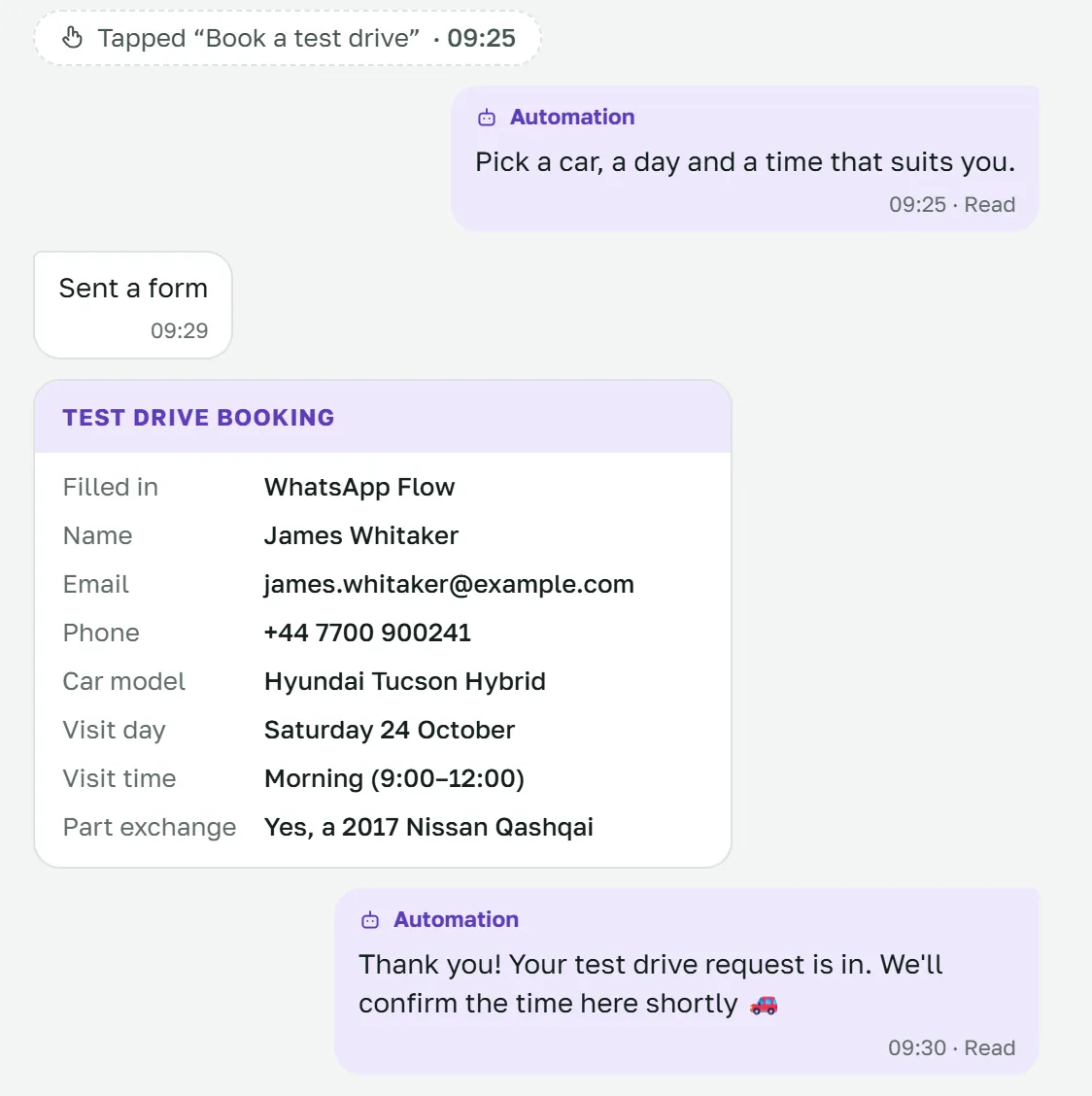
A chat with a submitted Test drive booking form: name, email, phone, car model, visit day and time, and part exchange

Forms

Forms with WhatsApp Flows

Build WhatsApp Flows in WaBizBox: screens, fields and a submit button. Customers fill them in without leaving WhatsApp, and every submission lands on the contact, on Home and in Reports, and is emailed to your team.

Field types

  • Short text
  • Long text
  • Number
  • Email
  • Phone
  • Date
  • Drop-down
  • One choice
  • Several choices
  • Agreement tick box
  • Start from an example: “Contact details” or “Booking”.
  • Save it as a draft or publish it at Meta. Editing a published Flow saves a new version, and the automation switches to it.
  • Flows made in WhatsApp Manager are listed too.
  • Photos and documents the customer picks are shown on the chat and the contact.
  • Where a language has no Flow, the same form is asked as questions, one at a time.

Languages

Up to 10 languages per number

Choose up to 10 of these 20 for each number, and write the texts yourself. New customers can be asked to pick one first.

  • Uzbek
  • Russian
  • English
  • Arabic
  • Hindi
  • Urdu
  • Bengali
  • Turkish
  • Kazakh
  • Kyrgyz
  • Tajik
  • Turkmen
  • Azerbaijani
  • Persian
  • Chinese
  • Spanish
  • French
  • German
  • Portuguese
  • Indonesian

Publishing

Preview, then publish

Changes apply to the next message: no deploy, no restart.

  1. Save a draft

    Custom steps stay a draft until you publish them. Until then, customers keep getting the simple menu.

  2. See what customers see

    A live preview shows your draft on a phone. Tap its buttons to follow each way: the steps it skips turn grey.

  3. Publish

    Your steps answer from the next message. An admin can switch the automation off, and every new chat then waits for your team.

With the simple menu, “Try it on my phone” opens your number’s chat in WhatsApp, so you can write to it as a customer does.

FAQ

Questions about automation

More in the main FAQ, or write to us at info@akasoft.io.

Is it AI?

No. It follows the steps you build: buttons, lists, questions, WhatsApp Flows and exact keywords. It never writes its own answers, and anything it doesn’t recognise goes to your team.

What if a customer types something else?

They get your fallback message with the menu again. After the number of unrecognised messages in a row you set, the chat is transferred to a human agent and waits for your team in the inbox. While a person has the chat, the automation doesn’t answer.

Can I switch it off?

Yes. An admin can switch the automation off, and every new chat then waits for your team. Switching it back on, like any change, applies to the next message.

See your WhatsApp chats in one place.

We’ll show you WaBizBox with your own use case, and what you need ready in Meta.